In today’s digital world, WhatsApp has become one of the most important communication tools for personal and professional use. Millions of users rely on it daily to share messages, photos, videos, documents, and important memories. But what happens if you lose your phone, switch devices, or accidentally delete your chats? This is where WhatsApp backup and restore becomes essential.
Creating a proper WhatsApp backup ensures your conversations, media files, and important data remain safe and recoverable anytime. Whether you use Android or iPhone, understanding how to back up and restore WhatsApp can save you from losing valuable information permanently.
This complete guide explains everything you need to know about WhatsApp backup and restore, including cloud backups, local backups, troubleshooting tips, security practices, and step-by-step instructions for both Android and iPhone users.
Table of Contents
What Is WhatsApp Backup and Restore?
WhatsApp backup and restore is the process of saving your WhatsApp chat history, media files, and settings to cloud storage or local storage and then recovering them whenever needed.
The backup feature allows users to:
- Save chats and media safely
- Transfer data to a new phone
- Recover deleted conversations
- Restore messages after reinstalling WhatsApp
- Protect important business or personal information
WhatsApp supports different backup systems depending on your device:
- Android: Google Drive + local storage
- iPhone: iCloud backup
Why WhatsApp Backup Is Important
Many users realize the importance of backups only after losing their data. Here are the biggest reasons why regular WhatsApp backup is necessary:
1. Prevent Data Loss
Phones can get damaged, stolen, or reset unexpectedly. Backups protect your chats from permanent deletion.
2. Easy Device Switching
When upgrading to a new smartphone, backups make transferring chats simple and fast.
3. Restore Deleted Chats
Accidental deletion is common. A recent backup helps recover lost conversations.
4. Protect Business Information
For businesses using WhatsApp Business, customer chats and documents are extremely valuable.
5. Store Memories Securely
Photos, voice notes, and shared videos often contain priceless memories.
How WhatsApp Backup Works
WhatsApp creates copies of your data and stores them securely. Depending on your device, backups can include:
- Text messages
- Photos
- Videos
- Voice messages
- Stickers
- Documents
- Settings
However, backups usually do not include:
- Call history
- Payment transaction data
- Real-time unsaved chats
WhatsApp Backup and Restore for Android
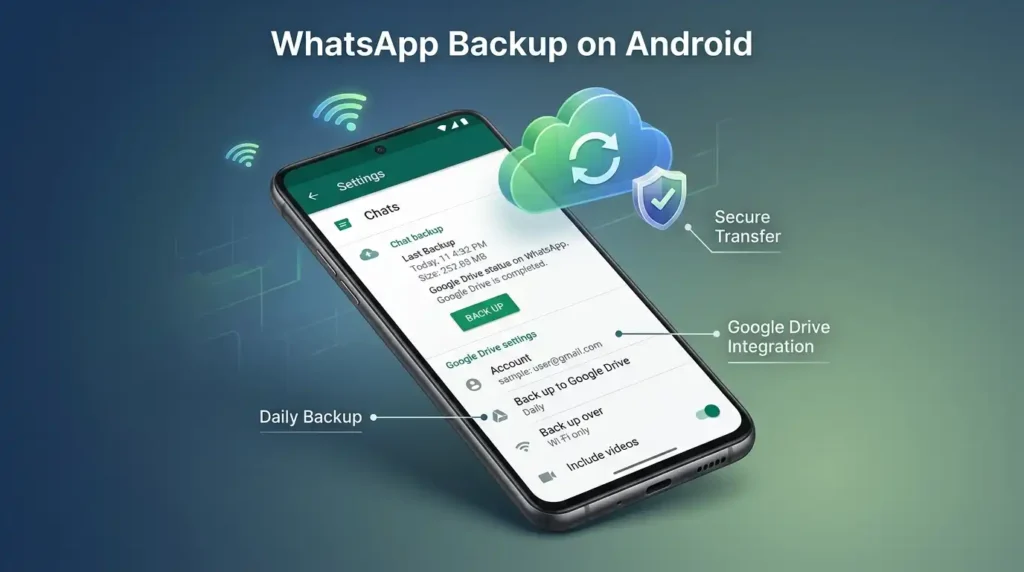
Android users primarily use Google Drive for cloud backups.
Step 1: Open WhatsApp Settings
- Open WhatsApp
- Tap the three-dot menu
- Select Settings
- Tap Chats
- Choose Chat Backup
Step 2: Connect Google Account
To enable backup:
- Select a Google account
- Sign in if necessary
- Allow storage permissions
Step 3: Choose Backup Frequency
You can select:
- Daily
- Weekly
- Monthly
- Only when tapping “Back Up”
- Never
Daily backups are recommended for maximum safety.
Step 4: Include Videos (Optional)
You can enable video backups, but remember:
- Videos consume more storage
- Backup times become longer
Step 5: Start Backup
Tap Back Up to create your latest WhatsApp backup.
Also Try: Free WhatsApp Link Generator – No Login, No Number Saving
How to Restore WhatsApp Backup on Android
Restoring WhatsApp on Android is simple if you use the same Google account and phone number.
Step-by-Step Restore Process
1. Install WhatsApp
Download and install WhatsApp from the Play Store.
2. Verify Phone Number
Enter the same number used during backup.
3. Detect Backup
WhatsApp automatically searches Google Drive for backups.
4. Tap Restore
Select Restore when prompted.
5. Wait for Completion
Chats appear first, followed by media restoration in the background.
WhatsApp Backup and Restore for iPhone
iPhone users rely on iCloud for WhatsApp backups.
How to Backup WhatsApp on iPhone
Step 1: Open WhatsApp
Go to:
- Settings
- Chats
- Chat Backup
Step 2: Enable iCloud Drive
Ensure iCloud Drive is active:
- Open iPhone Settings
- Tap your Apple ID
- Select iCloud
- Turn on iCloud Drive
Step 3: Start Backup
Tap Back Up Now.
You can also enable automatic backups:
- Daily
- Weekly
- Monthly
How to Restore WhatsApp Backup on iPhone
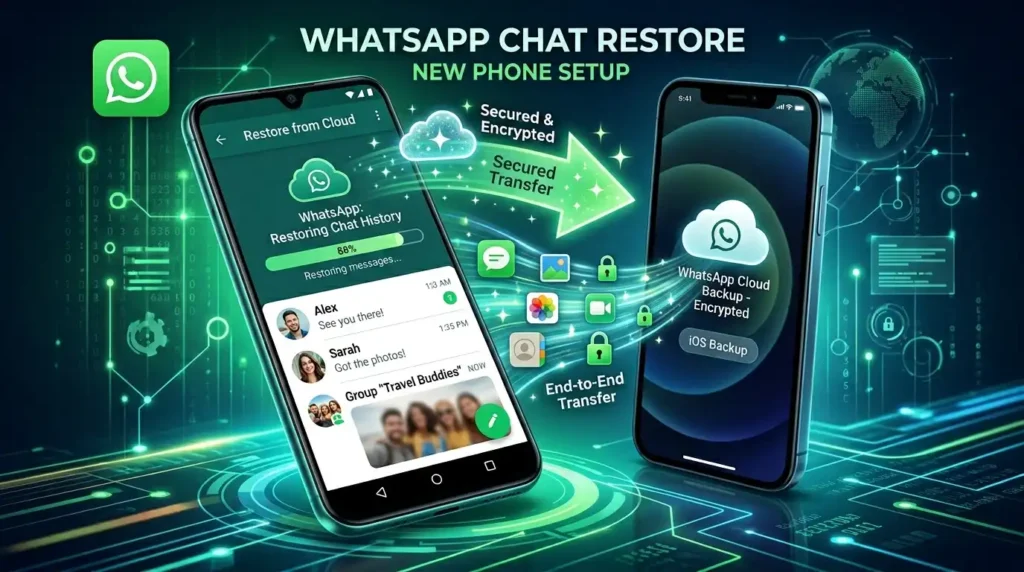
Step-by-Step Guide
1. Reinstall WhatsApp
Delete and reinstall the app.
2. Verify Your Phone Number
Use the same number linked to your backup.
3. Restore Chat History
Tap Restore Chat History when prompted.
4. Wait for Completion
Your chats and media will gradually restore.
Local Backup in WhatsApp
Besides cloud storage, WhatsApp also creates local backups on Android devices.
Benefits of Local Backup
- Works without internet
- Faster restoration
- Helpful when Google Drive backup fails
Where Local Backups Are Stored
Typically found in:
Internal Storage > WhatsApp > Databases
WhatsApp stores encrypted backup files with date stamps.
How to Restore WhatsApp from Local Backup
Step-by-Step Instructions
1. Locate Backup File
Use a file manager to open:
WhatsApp > Databases
2. Rename Backup File
Rename your chosen backup file to:
msgstore.db.crypt14
3. Reinstall WhatsApp
Delete and reinstall WhatsApp.
4. Verify Phone Number
Use the same number.
5. Restore Backup
WhatsApp detects the local backup automatically.
also read: How to Lock a Chat in WhatsApp: Easy Step-by-Step Guide
Common WhatsApp Backup Problems and Solutions
Many users experience backup or restore issues. Here are the most common problems and fixes.
1. WhatsApp Backup Stuck
Causes
- Poor internet connection
- Insufficient cloud storage
- Battery saver restrictions
Solutions
- Connect to stable Wi-Fi
- Free up storage
- Disable battery optimization
- Restart phone
2. Google Drive Backup Not Found
Fixes
- Use the same Google account
- Use the same phone number
- Update WhatsApp
- Check Google Drive permissions
3. iCloud Restore Failed
Solutions
- Verify iCloud login
- Ensure enough iCloud storage
- Enable iCloud Drive
- Restart device
4. Backup Taking Too Long
Large video files often slow backups.
Speed Improvement Tips
- Exclude videos
- Use high-speed Wi-Fi
- Delete unnecessary chats
How to Transfer WhatsApp Chats to a New Phone
Switching phones no longer means losing chats.
Android to Android
Use Google Drive backup and restore.
iPhone to iPhone
Use iCloud backup.
Android to iPhone
WhatsApp now supports official chat transfer using the Move to iOS app.
iPhone to Android
Use the cable transfer feature available on supported devices.
How to Backup WhatsApp Without Google Drive or iCloud
Some users prefer offline methods.
Alternative Backup Methods
1. Local Storage Backup
Copy the WhatsApp folder manually to:
- SD card
- USB drive
- Computer
2. Export Individual Chats
Open a chat and tap:
- More
- Export Chat
You can export:
- With media
- Without media
WhatsApp Backup Security and Privacy
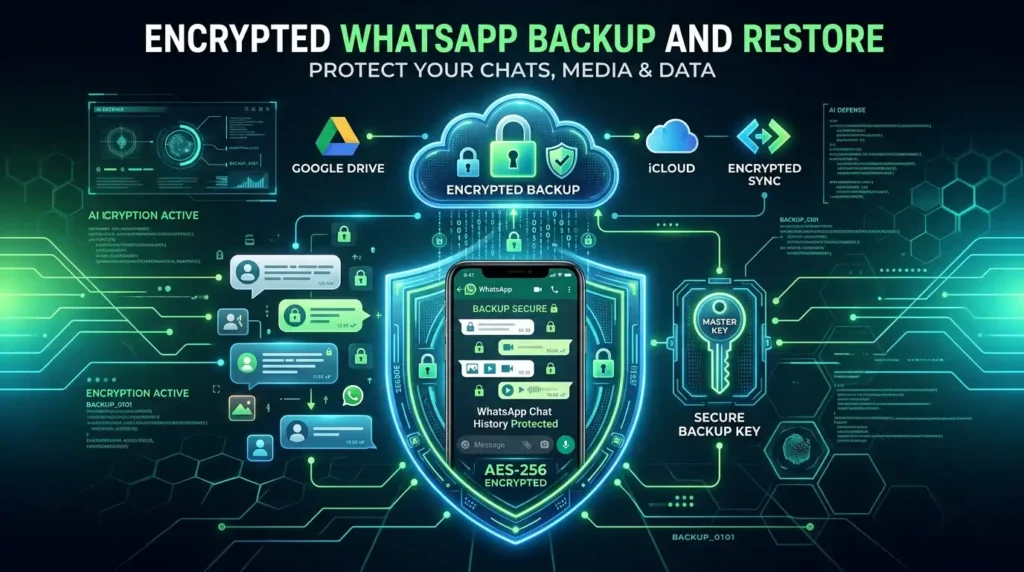
Security is extremely important when storing personal conversations.
End-to-End Encrypted Backup
WhatsApp now offers encrypted backups for extra protection.
How to Enable Encrypted Backup
- Open Chat Backup
- Select End-to-End Encrypted Backup
- Create password or encryption key
This feature prevents unauthorized access to your backup.
Best Practices for WhatsApp Backup and Restore
Follow these tips for a smoother experience.
Backup Regularly
Daily backups reduce data loss risk.
Use Strong Internet
Stable Wi-Fi prevents corrupted backups.
Keep Enough Storage
Ensure Google Drive or iCloud has available space.
Update WhatsApp Frequently
Latest versions improve backup reliability.
Protect Your Backup Password
Never share your encrypted backup password.
WhatsApp Backup for Business Users
Businesses often depend heavily on WhatsApp communication.
Why Businesses Need Frequent Backups
- Preserve customer records
- Protect invoices and files
- Maintain communication history
- Avoid operational disruption
WhatsApp Business users should ideally enable automatic daily backups.
Differences Between Android and iPhone Backup Systems
| Feature | Android | iPhone |
| Cloud Storage | Google Drive | iCloud |
| Local Backup | Yes | Limited |
| Encryption Support | Yes | Yes |
| Backup Flexibility | Higher | Moderate |
| Restore Speed | Fast | Fast |
How Much Storage Does WhatsApp Backup Need?
Backup size depends on:
- Number of chats
- Photos
- Videos
- Documents
Typical backup sizes:
- Light users: 500MB–2GB
- Heavy users: 5GB–20GB+
Regular cleanup helps reduce storage usage.
Tips to Reduce WhatsApp Backup Size
Delete Unnecessary Media
Remove old videos and forwarded files.
Clear Large Group Chats
Group chats consume massive storage.
Disable Auto Media Download
Prevents unwanted files from accumulating.
Use Chat Storage Management
WhatsApp offers built-in storage tools under:
Settings > Storage and Data > Manage Storage
also read: WhatsApp Stickers – The New Language of Emotions
Future of WhatsApp Backup and Restore
WhatsApp continues improving backup technology with:
- Faster cloud synchronization
- Better cross-platform transfers
- Stronger encryption
- AI-powered storage optimization
Future updates may make device switching even easier and more secure.
Frequently Asked Questions (FAQ)
1. What is WhatsApp backup and restore?
WhatsApp backup and restore is the process of saving your chats, photos, videos, and documents to cloud storage or local storage and recovering them later on the same or a new device.
2. Can I restore WhatsApp backup without uninstalling WhatsApp?
Usually, restoring requires reinstalling WhatsApp unless using local file recovery methods.
3. Can deleted WhatsApp messages be recovered?
Yes, if they exist in a previous backup.
4. How often should I backup WhatsApp?
Daily backups are ideal for active users.
5. Does WhatsApp backup and restore include photos and videos?
Yes, WhatsApp backup and restore can include photos, videos, audio files, and documents if media backup is enabled.
6. Can I transfer WhatsApp backup and restore from Android to iPhone?
Yes, WhatsApp supports official chat transfer between Android and iPhone devices using migration tools.
7. Why is my WhatsApp backup and restore not working?
Common reasons include:
Corrupted backup file
Weak internet connection
Low storage space
Wrong Google or iCloud account
Outdated WhatsApp version
8. Which is better for WhatsApp backup and restore: local backup or cloud backup?
Cloud backup is best for switching devices, while local backup provides faster offline recovery and extra control over files.
9. How long does WhatsApp backup and restore take?
The process may take a few minutes to several hours depending on backup size, internet speed, and device performance.
10. Can I backup WhatsApp to my computer?
Yes, by manually copying local backup files from your phone.
Conclusion
Understanding WhatsApp backup and restore is essential for protecting your important conversations, memories, and business communications. Whether you use Android or iPhone, regular backups ensure you never lose valuable data due to phone damage, accidental deletion, or device upgrades.
By following the step-by-step methods explained in this guide, you can confidently backup and restore your WhatsApp chats anytime. From Google Drive and iCloud backups to local storage and encrypted security options, WhatsApp offers multiple ways to keep your data safe.
Make backup creation a regular habit, maintain enough cloud storage, and always protect your encrypted backup credentials. With the right backup strategy, your WhatsApp data will remain secure, accessible, and easy to recover whenever you need it.
Also read: WhatsApp Features Not Showing? Why It Happens and How to Fix It