Introduction: The Mystery of Missing WhatsApp Features
Indeed, WhatsApp has now become an essential application to stay connected with our loved ones, family members, and colleagues, but what if all these features are suddenly gone? Isn’t it annoying that other people have access to these features while you are left with none?
The problem of WhatsApp Features Not Showing is far more common than you think it is. It can occur due to several factors, ranging from the rollout of new features by the servers to your phone itself being the cause of the problem.
Let’s understand why WhatsApp Features Are Not Showing and how you can solve it with ease.
Why Your WhatsApp Features Might Not Be Showing
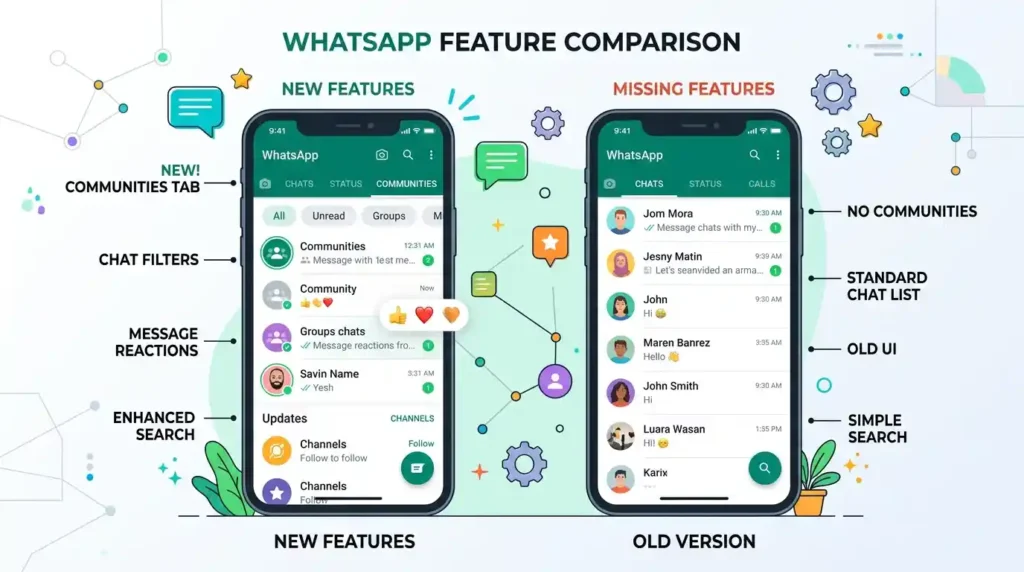
When you find your whatsapp features not showing, several factors could be at play. Understanding these underlying causes is the first step toward resolving the issue.
also read: What is wa me? The Ultimate Guide to WhatsApp Direct Chat Links
Gradual Rollouts and Server-Side Updates
One of the most frequent reasons for missing features is WhatsApp’s phased rollout strategy. New features are often introduced gradually to users around the world, rather than all at once. This means that some users might gain access to a new feature hours, days, or even weeks before others.
- Beta Testing Program: Users enrolled in the WhatsApp beta program often receive new features before the general public, allowing them to test and provide feedback on experimental tools and improvements. This can create a discrepancy where beta testers have features that stable version users do not.
- Phased Global Launches: WhatsApp sometimes launches new features in phases across different countries or regions for various reasons. You might simply live in a region where the feature isn’t yet available.
- Device-Specific Rollouts: In some cases, new or updated features might be available on specific devices first, meaning iPhone users could see a feature before Android users, or vice versa.
- Server-Side Feature Flagging: A more complex reason is server-side feature flagging, where Meta (WhatsApp’s parent company) remotely controls which accounts get access to certain features, even if the app’s code already contains them. Users have reported instances where features briefly appear after a reinstall, only to disappear again because an automated system decides their account doesn’t belong in that feature group.
Outdated App Version
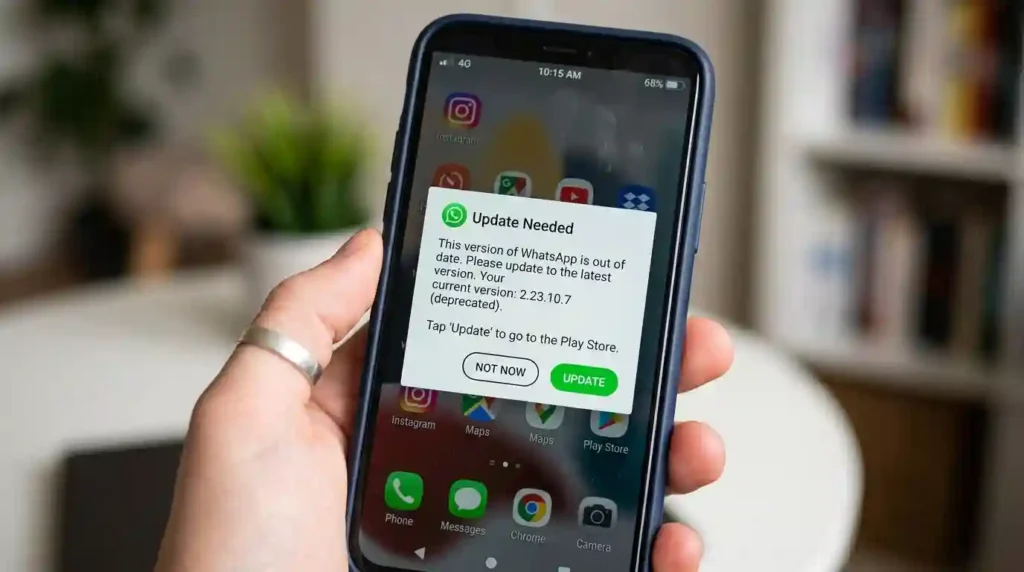
Perhaps the most straightforward reason for whatsapp features not showing is simply running an outdated version of the app. If your WhatsApp is not updated to the latest version, new functionalities might not be available to you. Keeping your app updated ensures you have access to the newest features, bug fixes, and security improvements.
Internet Connectivity Issues
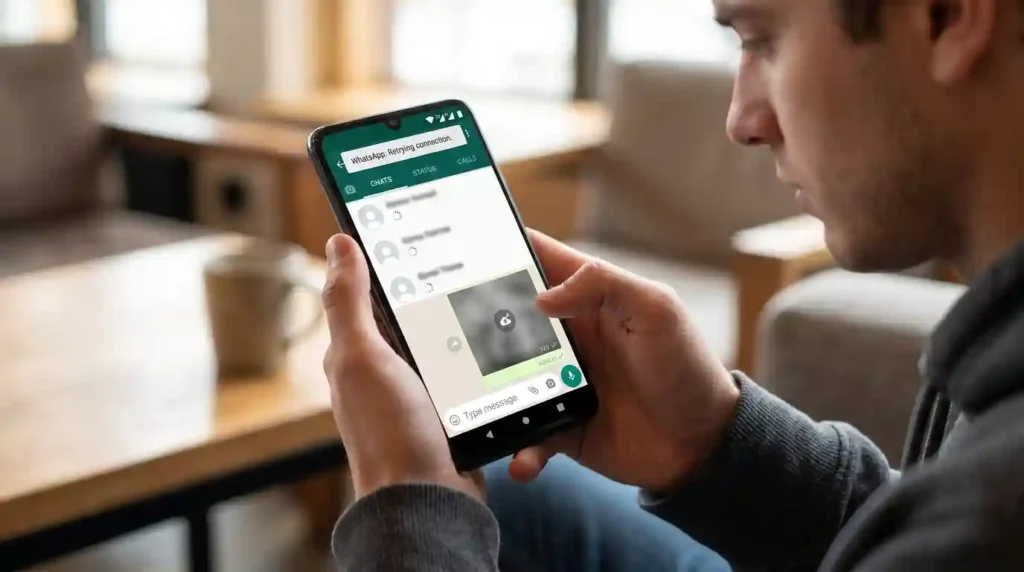
WhatsApp relies heavily on a stable internet connection for all its functionalities, including the proper display and loading of features. A weak or unstable Wi-Fi or mobile data connection can prevent the app from functioning correctly. If your device isn’t connected to a reliable network, features might fail to load or appear at all. Network restrictions, such as firewalls on work or school networks, can also block WhatsApp’s access to necessary servers.
Insufficient Device Storage

A lack of available storage space on your smartphone can significantly impact app performance and prevent new features from appearing or media from downloading. WhatsApp, like many apps, accumulates temporary files and media over time, which can consume a considerable amount of storage. If your device’s memory is full, the app may not be able to download necessary updates or function optimally.
Corrupted App Cache or Data
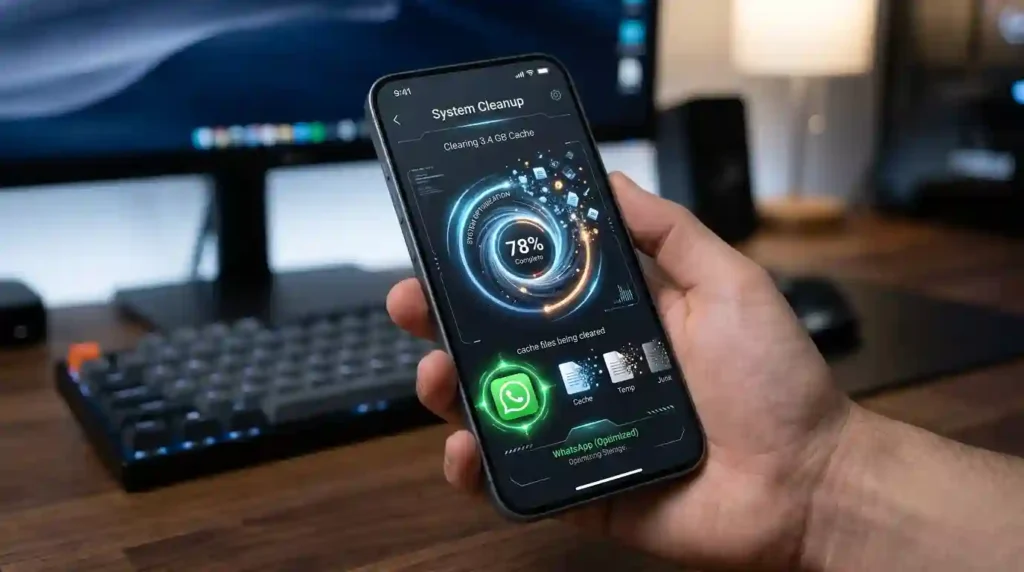
The app cache stores temporary data to help WhatsApp run faster and more efficiently. However, over time, this cache can become bloated or corrupted, leading to various app performance issues, including features not displaying correctly. Clearing the cache can often resolve these minor glitches and improve the app’s stability.
Device or OS Incompatibility
While less common for popular apps like WhatsApp, older smartphone models or outdated operating systems (Android or iOS) might eventually lose support for the latest WhatsApp versions and their advanced features. This can lead to compatibility issues where certain functionalities simply won’t run on your device.
Incorrect App Permissions
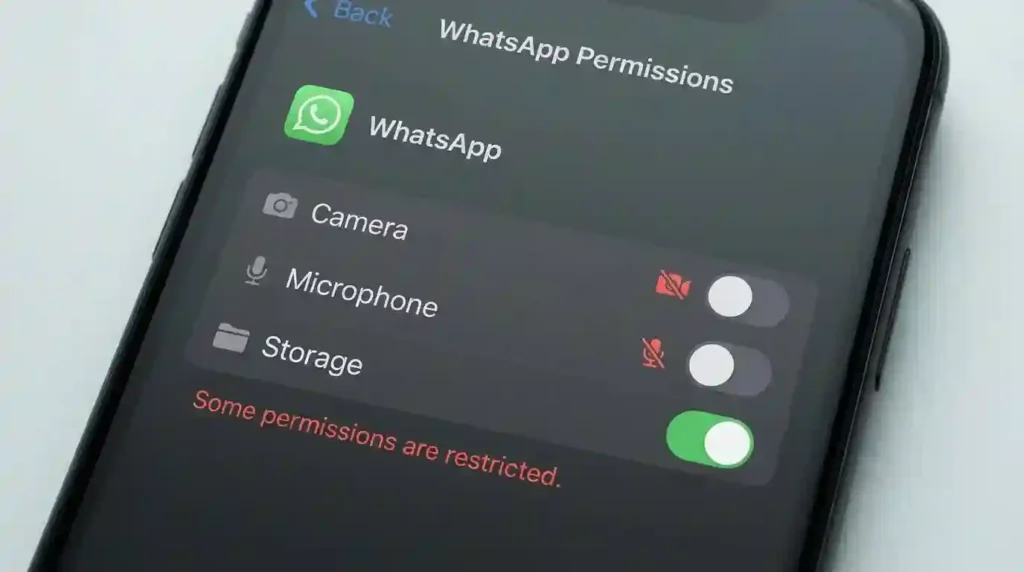
For WhatsApp to function fully, it requires certain permissions on your device, such as access to your camera, storage, contacts, and microphone. If these permissions are restricted or not granted, it can directly impact the availability of related features, such as video call filters or media sharing.
WhatsApp Beta Program Specifics
As mentioned, being a part of the WhatsApp beta program grants early access to features. However, beta versions are experimental and may be less stable than the public release, potentially leading to bugs, glitches, or features not working as expected. It’s a trade-off between experiencing innovations early and encountering potential instability. Even in beta, server-side flagging can cause features to appear and disappear.
Regional Restrictions or Server Outages
Beyond phased rollouts, some features might be subject to regional restrictions for regulatory or other reasons. Additionally, though rare, WhatsApp’s servers can experience outages, which can affect the app’s functionality for a large number of users. If WhatsApp’s servers are down, no amount of troubleshooting on your end will resolve the issue until the service is restored.
WhatsApp Plus and Premium Features
In a recent development, WhatsApp has begun testing an optional paid subscription called WhatsApp Plus. This premium tier offers enhanced customization and organizational tools, such as the ability to pin up to 20 chats (compared to three in the free version), custom app icons, new chat themes, and exclusive sticker packs. If you’re expecting certain aesthetic or organizational features and don’t see them, it’s possible they are part of this new premium offering, which is currently rolling out to a subset of Android beta users in select markets. Messaging, voice calls, and core privacy features remain free and accessible to all users.
Your Guide to Troubleshooting and Restoring Features
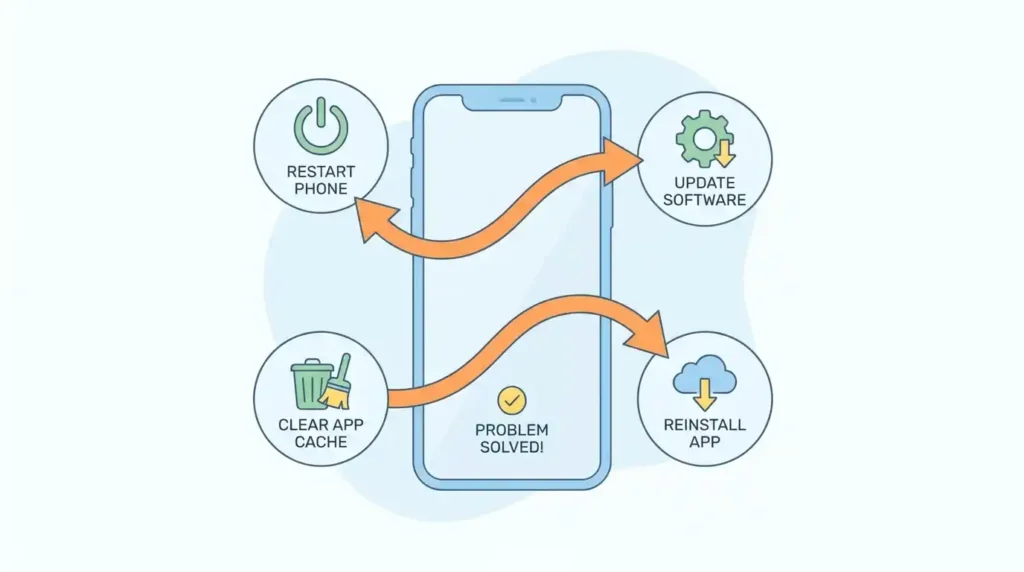
When you encounter whatsapp features not showing, there are several steps you can take to diagnose and resolve the problem. We’ll start with basic checks and move to more advanced solutions.
Basic Checks First
Before diving into complex troubleshooting, let’s cover some fundamental steps that often resolve common app issues.
- Verify Internet Connection: Ensure your device has a stable internet connection. Try switching between Wi-Fi and mobile data to see if the problem persists. Open another app or website to confirm that your general internet connection is working correctly. Sometimes, toggling Airplane mode on and off can reset your network connection.
- Restart WhatsApp: Close the WhatsApp application completely and then reopen it. This can often clear minor bugs or temporary glitches affecting the app’s display of features.
- Restart Your Device: A simple reboot of your smartphone can resolve many underlying system issues and refresh all running applications, including WhatsApp.
Useful WaupWeb Tool: Free WhatsApp Link Generator – No Login, No Number Saving
Update WhatsApp to the Latest Version
Keeping your app updated is paramount for accessing new features and ensuring optimal performance.
- For Android Users:
- Open the Google Play Store app.
- Tap on your profile icon (usually top-right).
- Select “Manage apps & device.”
- Look for WhatsApp under “Updates available” or search for “WhatsApp” directly.
- If an update is available, tap “Update.”
- For iPhone Users:
- Open the App Store app.
- Tap on your profile icon (usually top-right).
- Scroll down to see pending updates, or search for “WhatsApp.”
- If an update is available, tap “Update.”
Clear WhatsApp Cache
Clearing the app’s cache can fix performance issues and resolve situations where whatsapp features not showing due to corrupted temporary files.
- For Android Users:
- Go to your phone’s “Settings.”
- Tap on “Apps” or “Applications” (the naming might vary slightly by device).
- Find and tap on “WhatsApp” in the list of installed apps.
- Select “Storage & Cache”.
- Tap “Clear Cache.”
- Important Note: Clearing the cache will not delete your chats, media, or other important WhatsApp data. It only removes temporary files that might be causing issues. Avoid tapping “Clear Data” or “Clear Storage” unless you intend to completely reset the app and have a recent backup.
- For iPhone Users:
- iOS does not offer a direct “Clear Cache” button like Android. However, you can achieve a similar effect by “Offloading” the app or managing storage within WhatsApp itself.
- Method 1: Offload App (Recommended for clearing system-level cache)
- Go to your iPhone’s “Settings.”
- Tap “General,” then “iPhone Storage.”
- Scroll down and find “WhatsApp.”
- Tap “Offload App.” This frees up storage used by the app but keeps its documents and data (your chats).
- After offloading, tap “Reinstall App.” This effectively clears the cache and reinstalls the app without losing your data.
- Method 2: Manage Storage within WhatsApp
- Open WhatsApp.
- Go to “Settings” (bottom right).
- Tap “Storage and Data,” then select “Manage Storage.”
- Here, you can review and delete large media files or data from specific conversations without affecting your chat history. This helps free up space but doesn’t clear the app’s underlying system cache as thoroughly as offloading.
Free Up Device Storage
If your device is running low on storage, it can hinder WhatsApp’s performance.
- Delete old or unused media, apps, and files from your device.
- Use WhatsApp’s built-in storage management tool (Settings > Storage and Data > Manage Storage) to identify and remove large files like forwarded videos, photos, and documents that are taking up significant space. You can selectively delete items from specific chats.
Check and Adjust App Permissions
Ensure WhatsApp has all the necessary permissions to function correctly.
- For Android Users:
- Go to your phone’s “Settings.”
- Tap on “Apps” or “Applications.”
- Find and tap on “WhatsApp.”
- Select “Permissions.”
- Ensure that permissions like Camera, Microphone, Storage, and Contacts are allowed.
- For iPhone Users:
- Go to your iPhone’s “Settings.”
- Scroll down and tap on “WhatsApp.”
- Review the listed permissions (e.g., Photos, Camera, Microphone, Contacts) and ensure they are enabled as needed.
Reinstall WhatsApp (with backup)
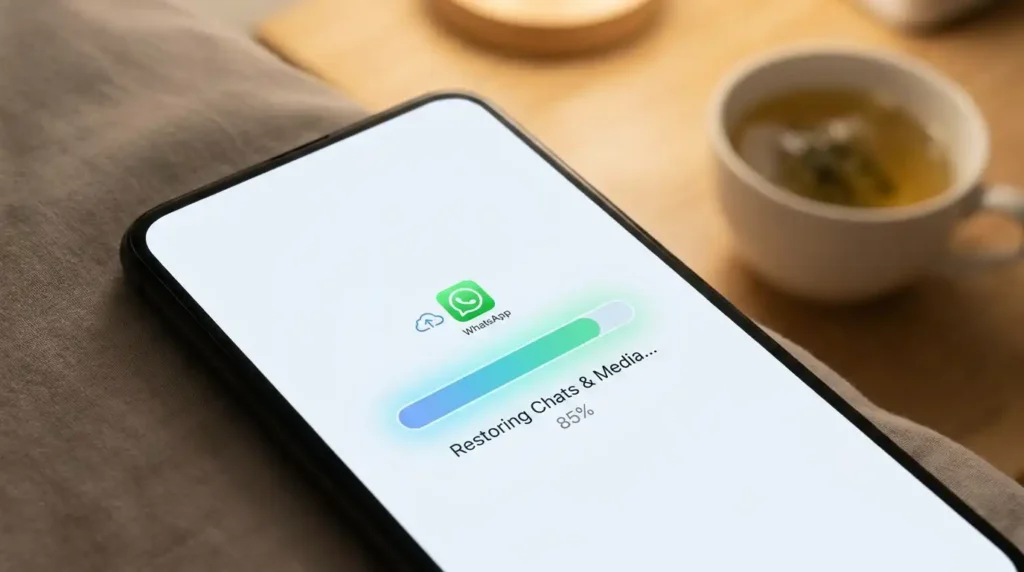
Reinstalling WhatsApp can be a powerful troubleshooting step, especially if the app is frequently crashing or experiencing persistent issues. However, it is crucial to back up your chats first to avoid data loss.
- Step 1: Back Up Your Chats
- For Android:
- Open WhatsApp, go to “Settings” > “Chats” > “Chat backup.”
- Ensure a Google Account is linked and tap “Back Up.” Wait for the backup process to complete, making sure it uploads to Google Drive. WhatsApp also creates local backups on Android, typically in your phone’s internal storage under Storage > Files > WhatsApp > Databases.
- For iPhone:
- Open WhatsApp, go to “Settings” > “Chats” > “Chat Backup.”
- Tap “Back Up Now.” Ensure iCloud Backup is enabled and wait for the backup to finish.
- For Android:
- Step 2: Uninstall WhatsApp
- For Android: Press and hold the WhatsApp icon on your home screen or app drawer, then drag it to the “Uninstall” option, or go to Settings > Apps > WhatsApp > Uninstall.
- For iPhone: Press and hold the WhatsApp icon on your home screen until it jiggles, then tap the “X” or “Remove App” option.
- Step 3: Reinstall WhatsApp
- Download WhatsApp again from the Google Play Store (Android) or App Store (iPhone).
- During the initial setup, verify your phone number. When prompted, tap “Restore” to recover your messages and media from your Google Drive or iCloud backup.
- Caution: Be aware that reinstalling WhatsApp can sometimes temporarily re-enable features due to server-side flagging, only for them to disappear again later as the system re-evaluates your account. This can lead to a frustrating “promotion and demotion loop”.
Check WhatsApp Server Status
If you’ve tried all the above and still experience issues, it might not be a problem on your end.
- Check online services like Down Detector or simply ask friends if their WhatsApp is working. If there’s a widespread outage, you’ll need to wait for WhatsApp to resolve the issue.
Join or Leave WhatsApp Beta Program
If you’re eager to try new features early, or if you suspect your beta version is causing instability, managing your beta participation can help.
- Joining the Beta Program:
- Android: Visit the WhatsApp page on the Google Play Store and look for the option to “Join the beta tester program”.
- iOS: WhatsApp beta for iOS is managed through Apple’s TestFlight program and may have limited slots. You’ll typically need an invitation or to find an open link.
- Android: Visit the WhatsApp page on the Google Play Store and look for the option to “Join the beta tester program”.
- Leaving the Beta Program: You can usually leave the beta program from the same app store page where you joined. Once you leave, you can uninstall and reinstall the stable version of WhatsApp.
- Considerations: Beta versions offer early access but can be unstable and buggy. If stability is a priority, the public version is generally more reliable.
also read: Free AI Image Generator No Login: The Complete Guide to Creating AI Art Instantly
Contact WhatsApp Support
If you’ve exhausted all troubleshooting steps and your whatsapp features not showing issue persists, especially if it’s a critical feature, contacting WhatsApp support is the next logical step.
- You can usually find a “Help” or “Contact Us” section within WhatsApp’s settings.
- Describe your issue in detail, including the specific features that are missing, your device model, and the troubleshooting steps you’ve already taken.
- Be aware that support responses might sometimes be automated, but providing clear information can help.
Frequently Asked Questions (FAQ)
Why are new WhatsApp features rolled out gradually?
WhatsApp rolls out new features gradually for several reasons. This phased approach allows them to monitor performance, gather feedback, and fix any bugs before a wider release. It also includes beta testing programs, regional availability, and device-specific deployments. This ensures a smoother and more stable experience for the majority of users when the features are fully launched.
Will I lose my chats if I clear WhatsApp cache?
For Android users, clearing the WhatsApp cache will not delete your chats, media, or other personal data. It only removes temporary files that help the app run efficiently. For iPhone users, there isn’t a direct “clear cache” button. However, using the “Offload App” feature (Settings > General > iPhone Storage > WhatsApp > Offload App) will free up storage while keeping your chats intact. If you choose to uninstall and reinstall, you must have a recent iCloud backup to restore your chats.
How do I know if my WhatsApp is the latest version?
You can check if your WhatsApp is the latest version by visiting your device’s app store.
- On Android: Open the Google Play Store, tap your profile icon, go to “Manage apps & device,” and look for WhatsApp. If an “Update” button is visible, an update is available.
- On iPhone: Open the App Store, tap your profile icon, and scroll to see pending updates. If WhatsApp appears with an “Update” button, a newer version is available.
What is WhatsApp Plus and why don’t I have its features?
WhatsApp Plus is a new, optional paid subscription package that WhatsApp is currently testing. It offers enhanced customization and organizational features, such as the ability to pin up to 20 chats, custom app icons, new chat themes, and exclusive sticker packs. If you don’t see these features, it’s likely because you are not part of the limited beta rollout for WhatsApp Plus, or you are not subscribed to the premium tier. Core messaging and privacy features remain free for all users.
My feature disappeared after reinstalling WhatsApp. Why?
If a feature briefly appeared after reinstalling WhatsApp but then disappeared, it might be due to WhatsApp’s server-side feature flagging system. When you reinstall, the app might temporarily place your account in a group that has access to certain new features. However, an automated system might later determine your account doesn’t fit that criteria, silently removing the feature again. This can create a cycle where features appear and vanish, even for beta users.
Conclusion: Ensuring a Seamless WhatsApp Experience
Navigating the occasional complexities of whatsapp features not showing can be a test of patience, but with a structured approach, most issues can be resolved. We’ve explored the common culprits, from gradual feature rollouts and outdated app versions to connectivity woes and corrupted cache data. We’ve also highlighted the emergence of WhatsApp Plus, an optional subscription that introduces a new dimension of premium features.
The key takeaways for ensuring a seamless WhatsApp experience are consistent vigilance and proactive maintenance:
- Always keep your WhatsApp application updated to the latest version available in your app store. This is often the simplest and most effective solution for accessing new functionalities and bug fixes.
- Regularly check your internet connection and ensure your device has sufficient storage space.
- Don’t hesitate to perform basic troubleshooting steps like restarting the app or your device, or clearing the app’s cache.
- Always remember to back up your chats before undertaking more drastic measures like reinstalling the app.
While some features may be subject to phased rollouts or server-side controls, persistent issues often point to a local problem that can be fixed with the right troubleshooting steps. By following the guidance provided in this article, we are confident that you can overcome the mystery of missing WhatsApp features and continue to enjoy one of the world’s most vital communication platforms without interruption. Stay connected, stay updated, and make the most of your WhatsApp experience.
Also read:Discover It Secured Credit Card: Requirements, Deposit, Benefits & How to Get Approved